


Help:Grids
You can create grids of content with <div class="grid">.
Grids created this way will be responsive, meaning they will adjust to the size of the user's screen. You can also control the default number of columns by using the "grid-2", "grid-3", "grid-4", "grid-5" and "grid-6" classes, instead of "grid" (see this example), but the number of columns will still adjust to the user's screen if the preferred number of columns doesn't fit.
Examples
[edit | edit source]Videos
[edit | edit source]Wikitext:
<div class="grid">
{{Video|45JhacvmXV8}}
{{Video|z4_GxPHwqkA}}
{{Video|Q9NqGd7464U}}
{{Video|8CLRTa_ocmo}}
{{Video|z_R0gEDZhAI}}
{{Video|wL9PcGu_xrA}}
</div>
Output:


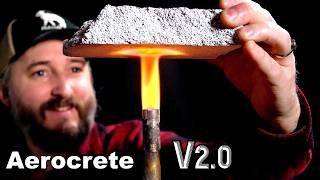
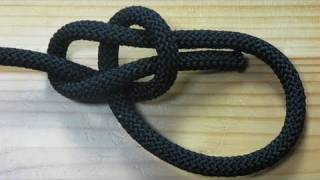


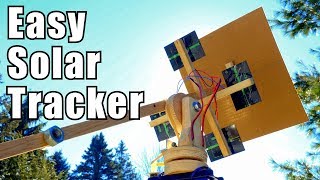
Cards
[edit | edit source]Wikitext:
<div class="grid">

{{Card
| title = First card
| text = Content of the first card.
}}

{{Card
| title = Second card
| text = Content of the second card.
}}

{{Card
| title = Third card
| text = Content of the third card.
}}

</div>
Output:
First card
Content of the first card.
Second card
Content of the second card.
Third card
Content of the third card.
Control the number of columns
[edit | edit source]Wikitext:
<div class="grid-2">
{{Video|45JhacvmXV8}}
{{Video|z4_GxPHwqkA}}
{{Video|Q9NqGd7464U}}
{{Video|8CLRTa_ocmo}}
{{Video|z_R0gEDZhAI}}
{{Video|wL9PcGu_xrA}}
</div>
Output: